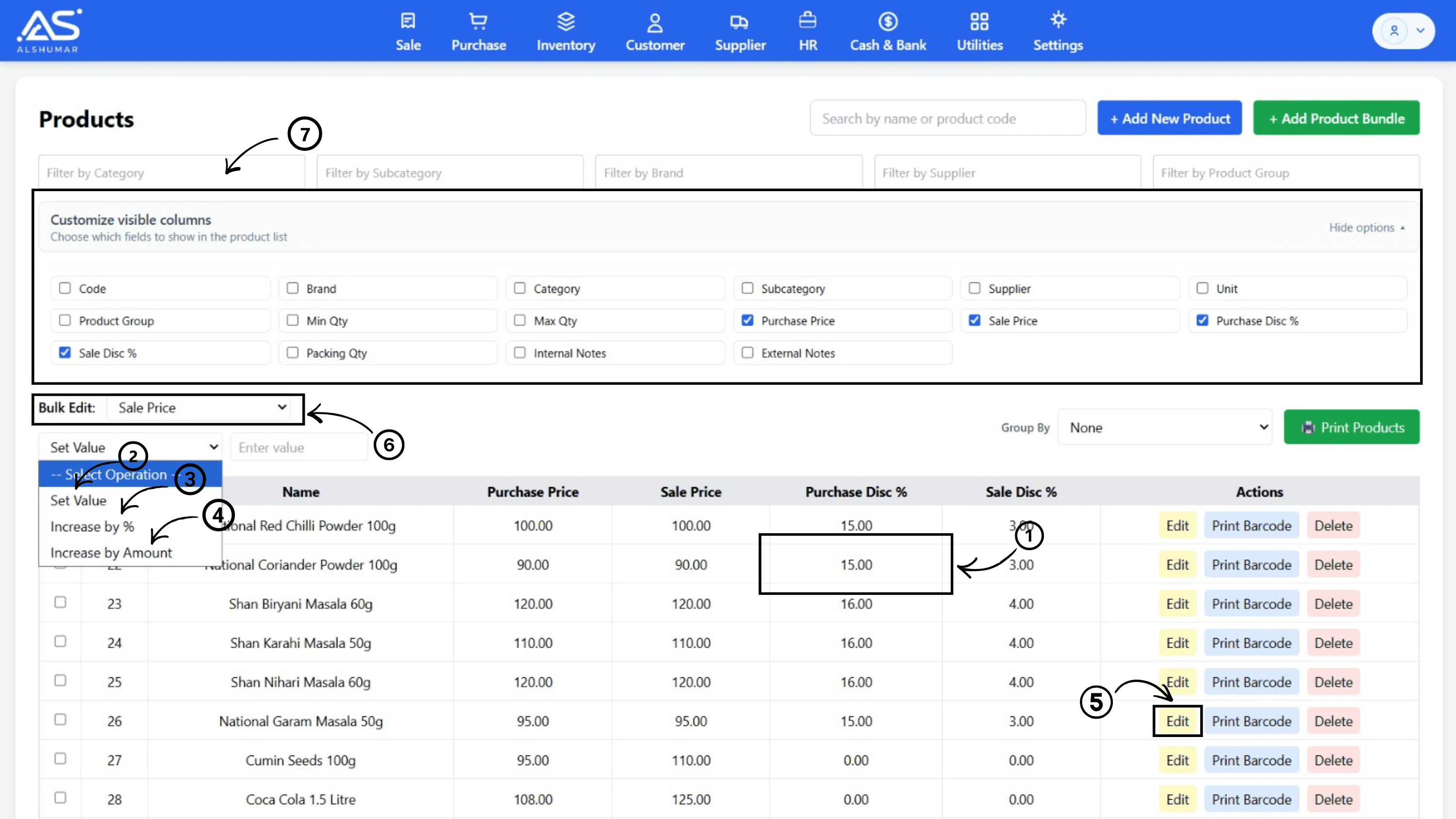
If you run a retail shop, distribution business, or wholesale operation in Pakistan right now, you already know the problem. Prices do not stay the same for more than a few days. A supplier calls, rates have gone up. Dollar shifts. Freight costs change. And you are sitting with hundreds of products in your system that all need updating — one by one.
Most business owners in Pakistan are still doing this manually. Opening each product, changing the price, saving, moving to the next. If you have 50 products to update, that is an hour of work. If you have 500, that is your entire afternoon gone.
Al Shumar POS is built to fix exactly this. The price management features in the system are designed for the reality of doing business in Pakistan — where prices move fast and your time is limited.
This guide walks through every method available in Al Shumar Software to update prices. Use the method that fits your situation.
Table of Contents
Inline Editing — Change a Price Without Opening the Product
Bulk Update — Set the Same Price for Multiple Products at Once
Bulk Increase by Percentage — Raise Prices Across Categories
Bulk Increase by Fixed Amount — Add a Set Amount to Multiple Products
Individual Product Price Form — Dedicated Quick Update Window
Filtering Before Bulk Update — Only Update What You Need To
Customizing Your View — See Only the Columns You Need
Bundle Product Protection — No Accidental Overwrites
Which Method Should You Use?
1. Inline Editing — Change a Price Without Opening the Product
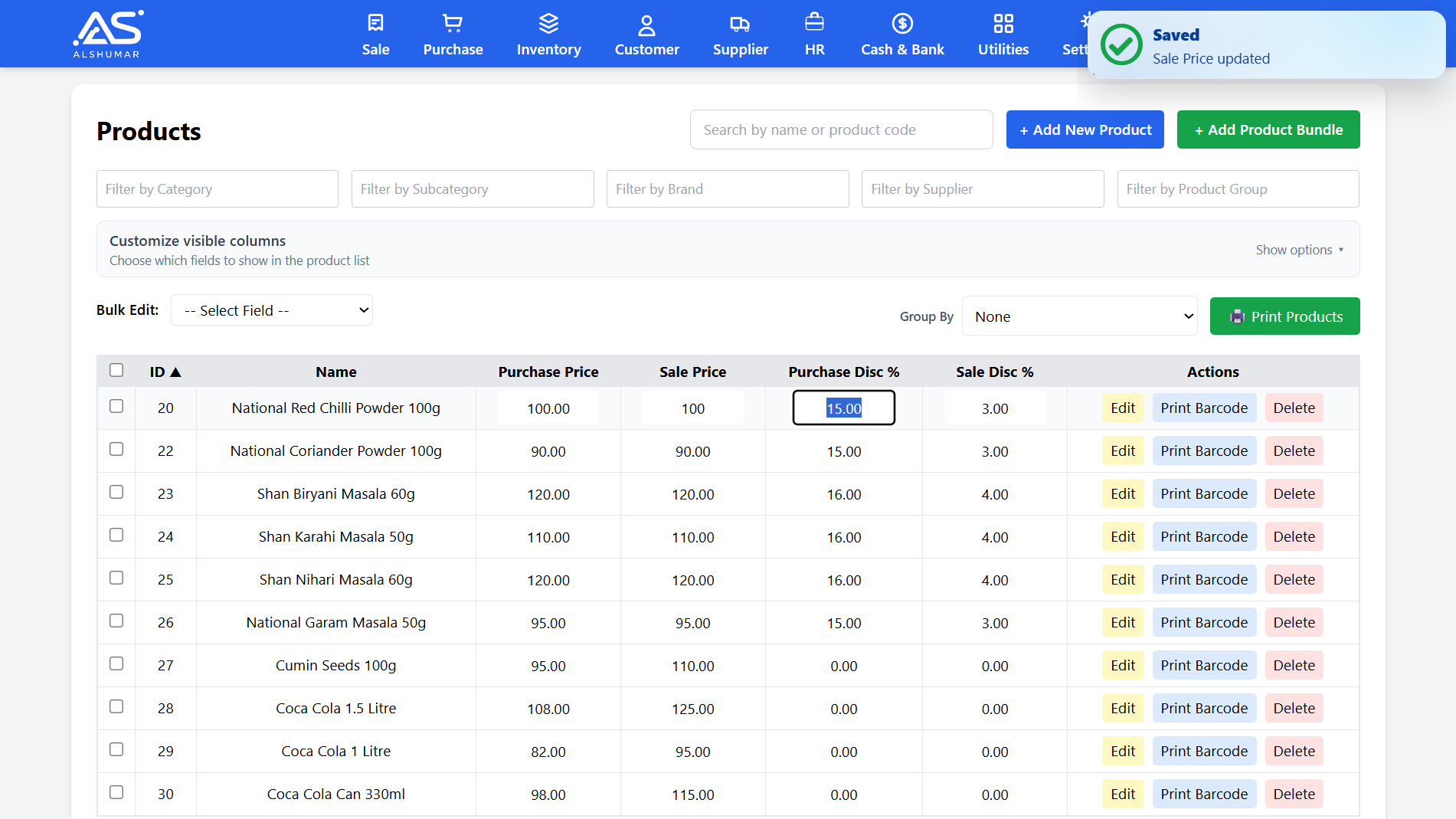
This is the fastest way to update a single price. No popups, no new pages, no saving and coming back. You click directly on the price in the product list table and type the new value.
It works for four fields:
Sale Price
Purchase Price
Sale Discount
Purchase Discount
Click the field, type the number, press Tab or click away. Done. The change saves instantly to the database. No confirmation button needed.
This is the method to use when a supplier has called you with a new rate on one specific product and you want it updated in thirty seconds before you forget.
One thing to note: if a product is a bundle — meaning its price is calculated automatically from its components — that field will be locked. You will see it greyed out. This is by design. Bundle prices are managed through the component products, not directly.
2. Bulk Update — Set the Same Price for Multiple Products at Once
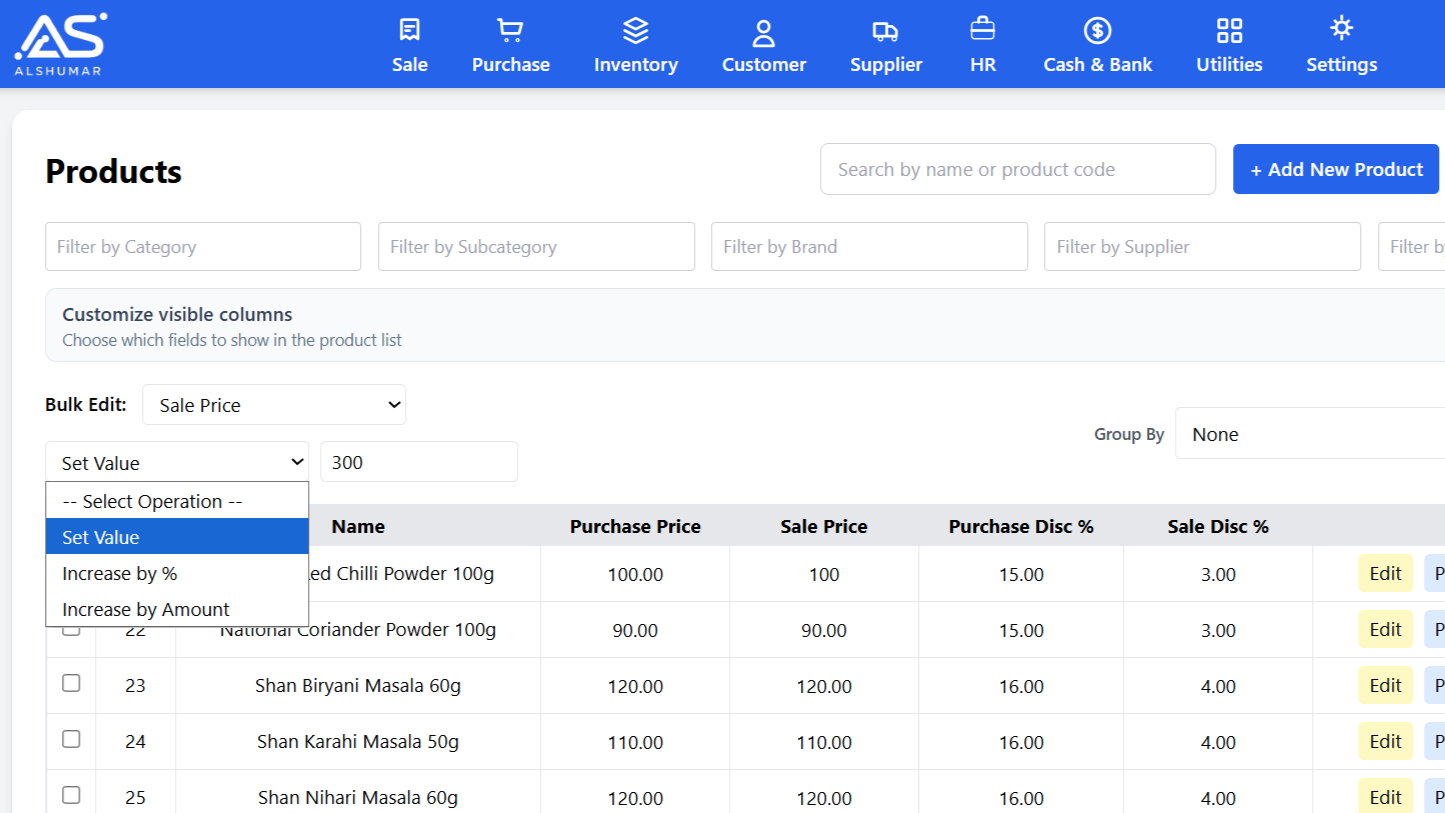
When a supplier increases the purchase price of an entire category to the same new rate, inline editing one by one is not the answer. This is where bulk update comes in.
Here is how it works:
Select the products you want to update using the check boxes on the left
In the bulk action bar at the top, choose the field you want to update — Sale Price, Purchase Price, Sale Discount, or Purchase Discount
Enter the new value
Click Apply
All selected products get that exact value applied at once. The table refreshes and shows the updated prices immediately.
This works for price fields as well as discounts. You can select 100 products from one supplier and set their purchase price to a new fixed value in literally one click.
3. Bulk Increase by Percentage — Raise Prices Across Categories
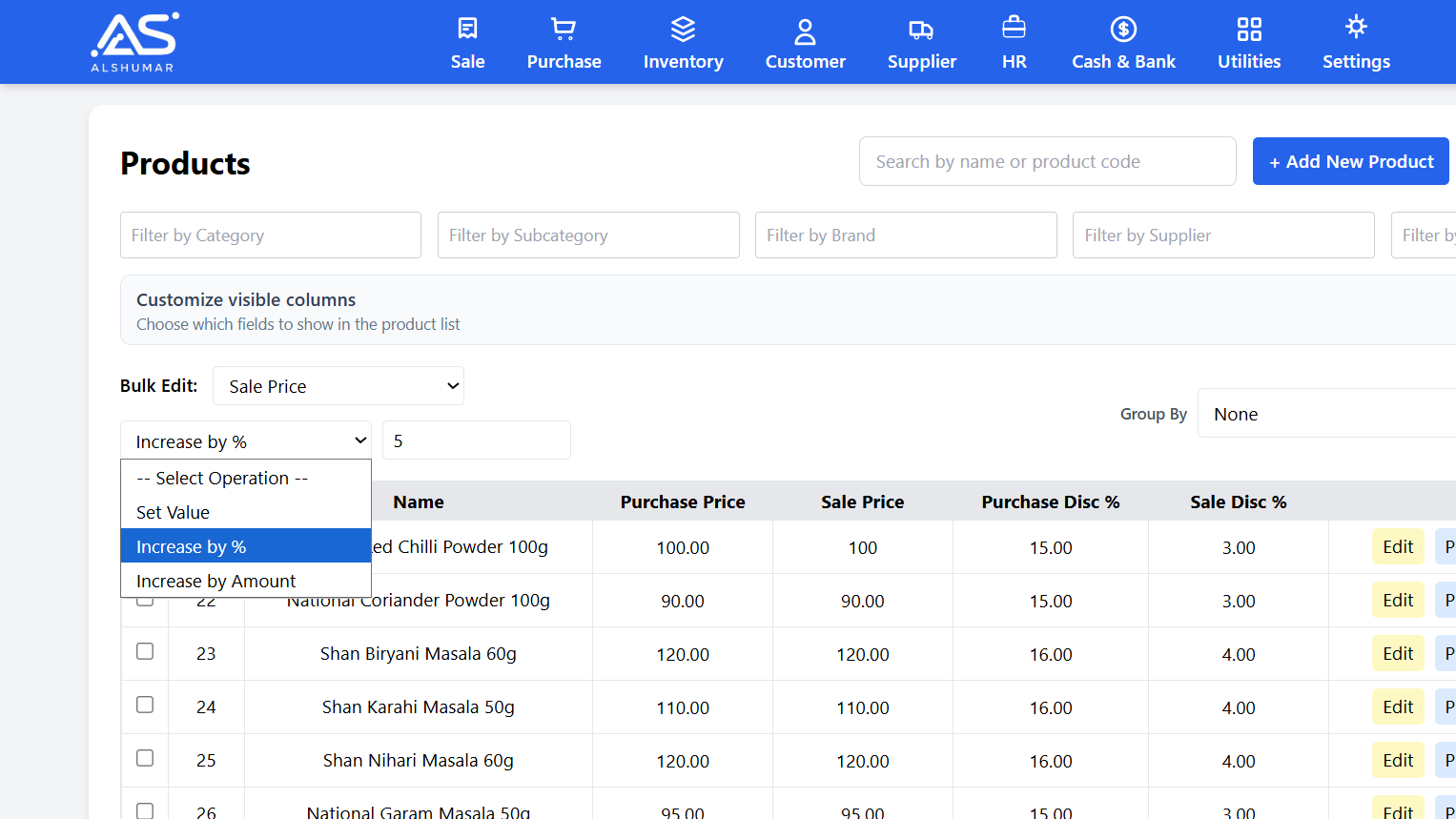
This feature is built for inflation.
When your costs have gone up by 8% across the board and you need to pass that increase on to your sale prices — you do not need to calculate each product manually. You select the products, choose "Increase by %", enter the percentage, and the system calculates and updates every selected product automatically.
The calculation is straightforward:
New Price = Current Price + (Current Price × Percentage / 100)
So if a product was priced at Rs. 1,000 and you apply a 10% increase, it becomes Rs. 1,100. A product at Rs. 750 becomes Rs. 825. Every product gets its own calculation based on its own current price.
The system handles the rounding properly too. Results are rounded to two decimal places and trailing zeros are removed so your prices stay clean — Rs. 1,100 not Rs. 1,100.00.
This works on:
Sale Price
Purchase Price
Sale Discount
Purchase Discount
You can apply a percentage increase to purchase prices after a supplier revision, then apply a separate percentage to sale prices to maintain your margin. Both in the same session without leaving the screen.
4. Bulk Increase by Fixed Amount — Add a Set Amount to Multiple Products
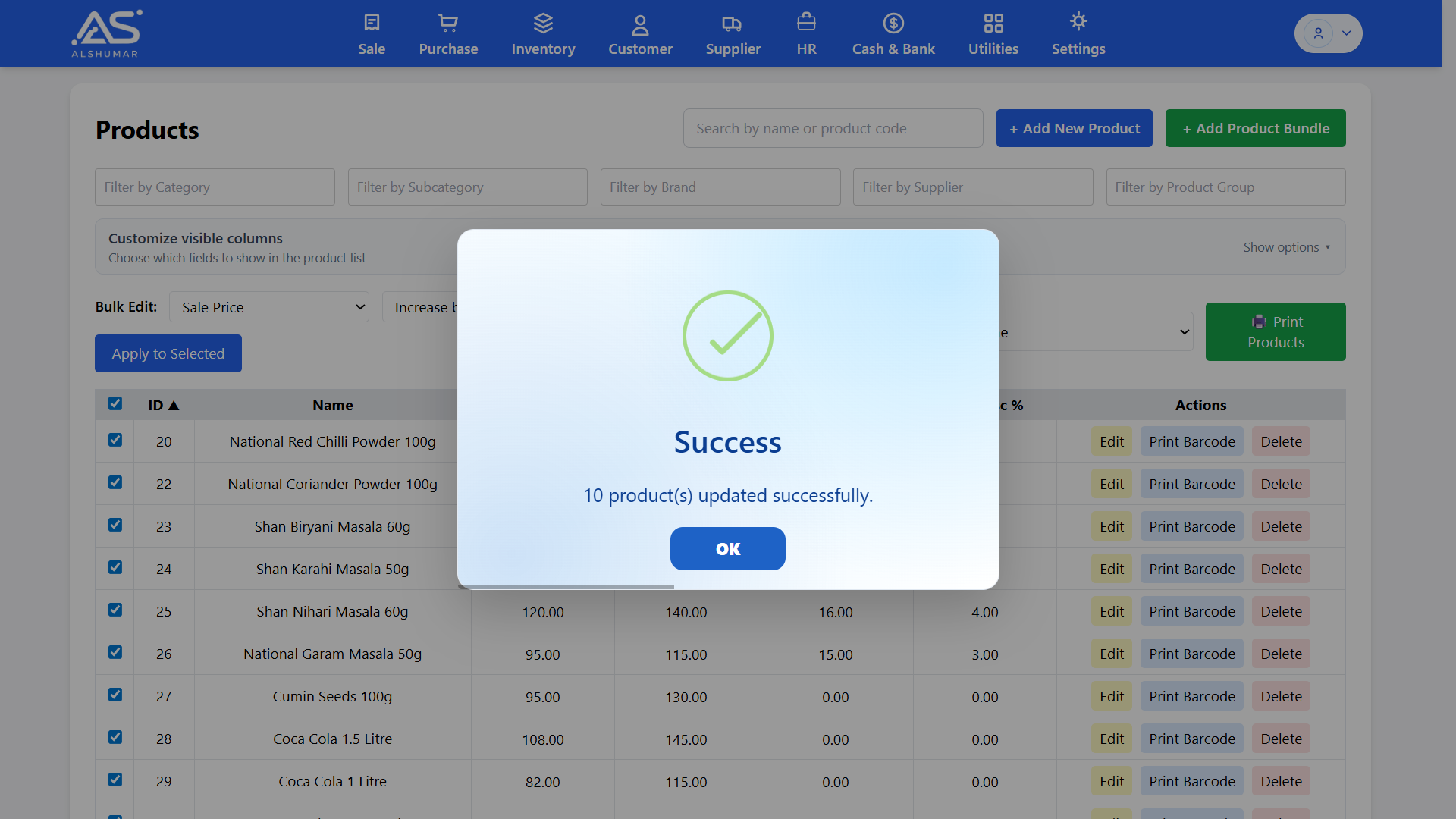
Sometimes the increase is not a percentage — it is a fixed amount. Freight charges went up by Rs. 30 per unit. Or you want to add a flat Rs. 50 margin to a group of products.
Select "Increase by Amount" from the mode dropdown, enter the fixed amount, and apply. Every selected product increases by exactly that amount regardless of what the current price is.
Both percentage and amount increase work the same way in terms of selection and filtering — you can apply them to a handful of products or hundreds at once.
5. Individual Product Price Form — Dedicated Quick Update Window
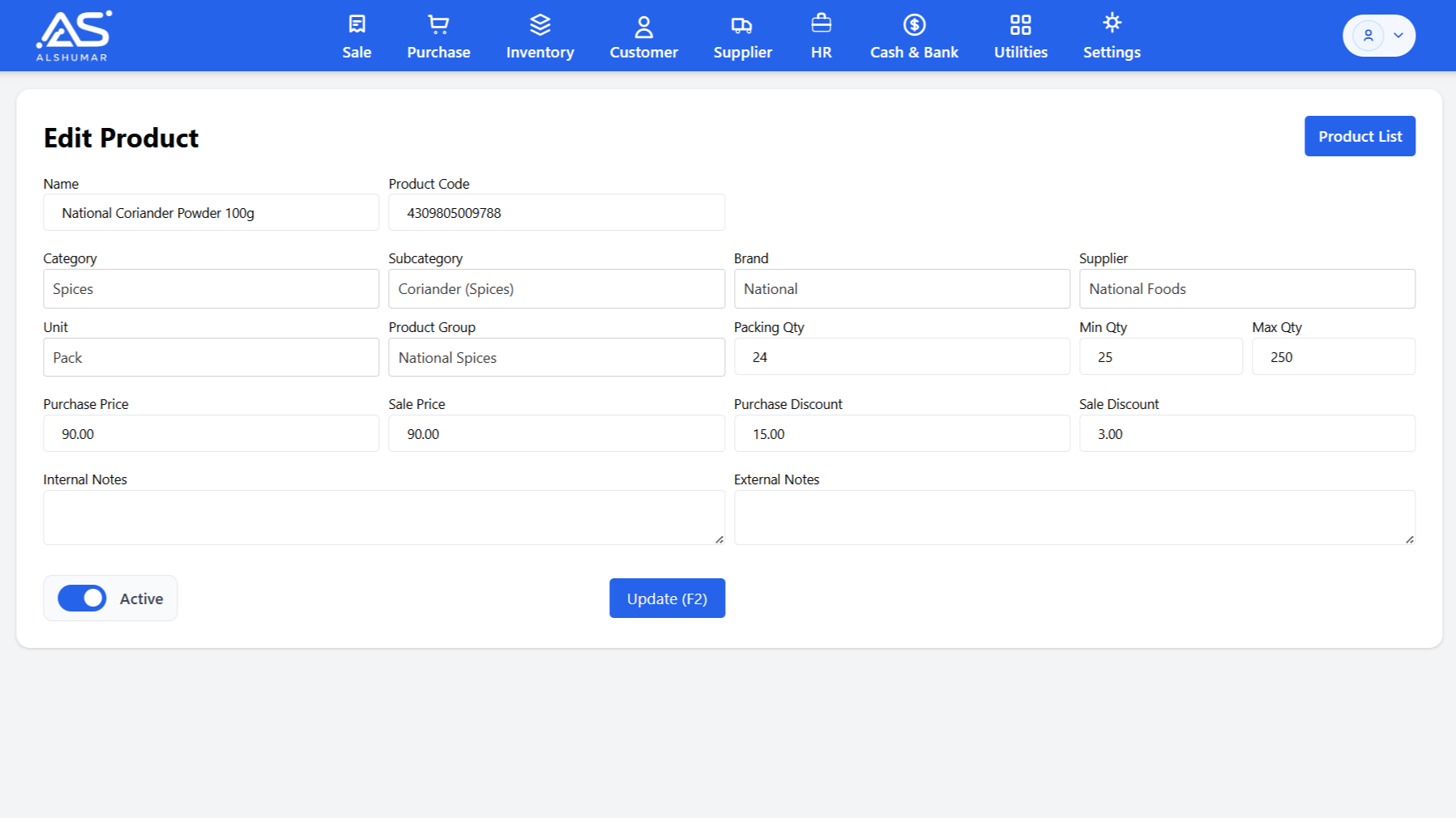
For situations where you want to update all price-related fields of one product at the same time — sale price, purchase price, discounts, list price — there is a dedicated quick price update form per product.
It opens in a new window. You update what you need, save, and the window closes automatically. No navigating away from the product list. No full product edit form loading. Just the price fields, fast.
This is useful when you need to update more than just the sale price for one product. The inline edit handles one field at a time. The quick form handles all price fields for one product at once.
6. Filtering Before Bulk Update — Only Update What You Need To
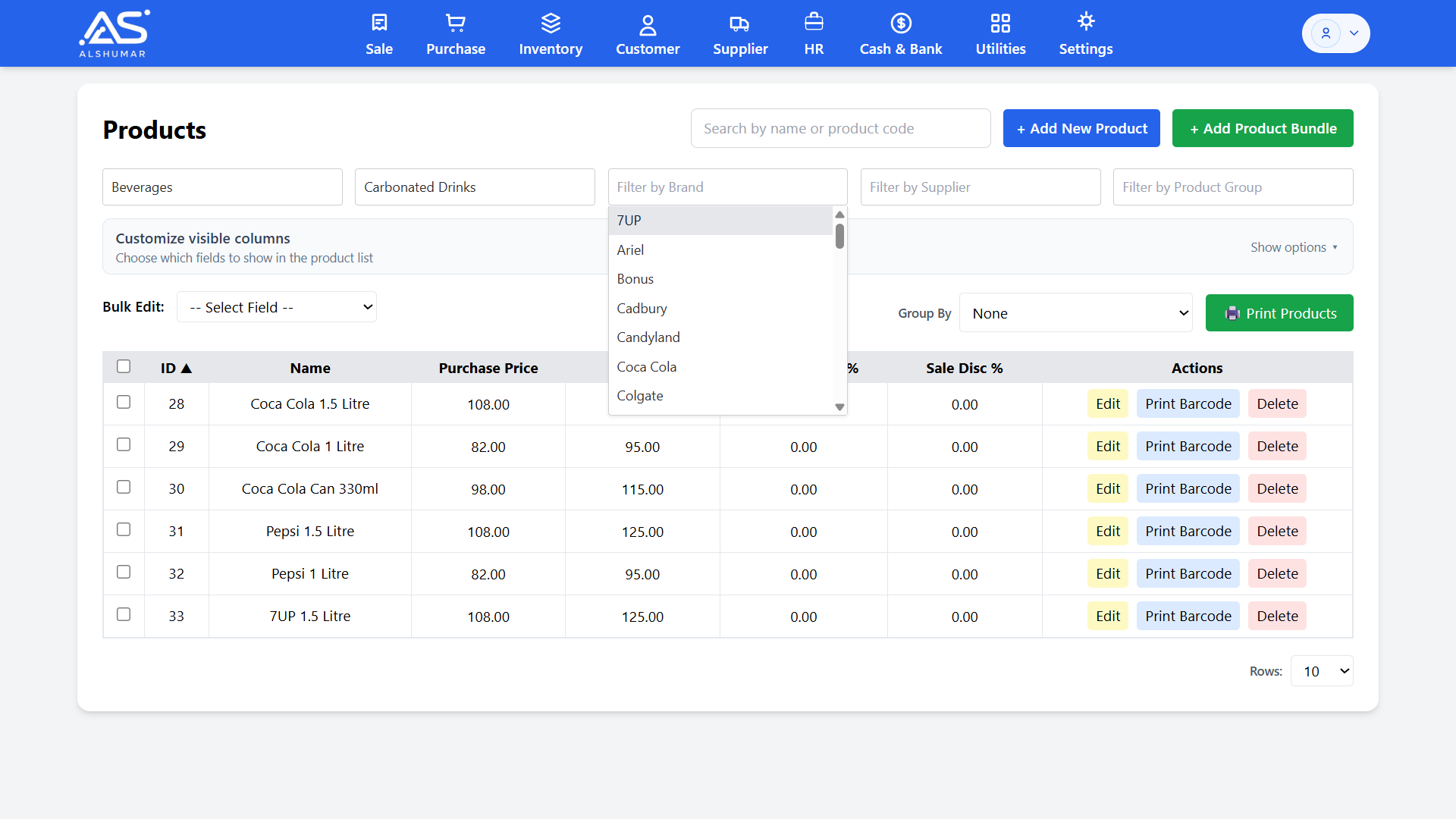
The bulk update features become much more powerful when you combine them with filtering.
The product list in Al Shumar POS has filters for:
Category — filter all products under Beverages, Electronics, Clothing etc.
Subcategory — narrow down within a category
Brand — filter by manufacturer or brand
Supplier — filter all products from a specific supplier
Product Group — filter by your custom product groupings
Search — search by product name or product code
The workflow looks like this:
Filter by Supplier → select your supplier
All products from that supplier appear in the list
Select all of them
Apply bulk increase by the percentage your supplier revised
You have updated every product from that supplier in under a minute without touching a single unrelated product.
This is especially useful for distributors and wholesalers in Pakistan who deal with multiple suppliers and need to manage price revisions supplier by supplier without mixing things up.
7. Customizing Your View — See Only the Columns You Need
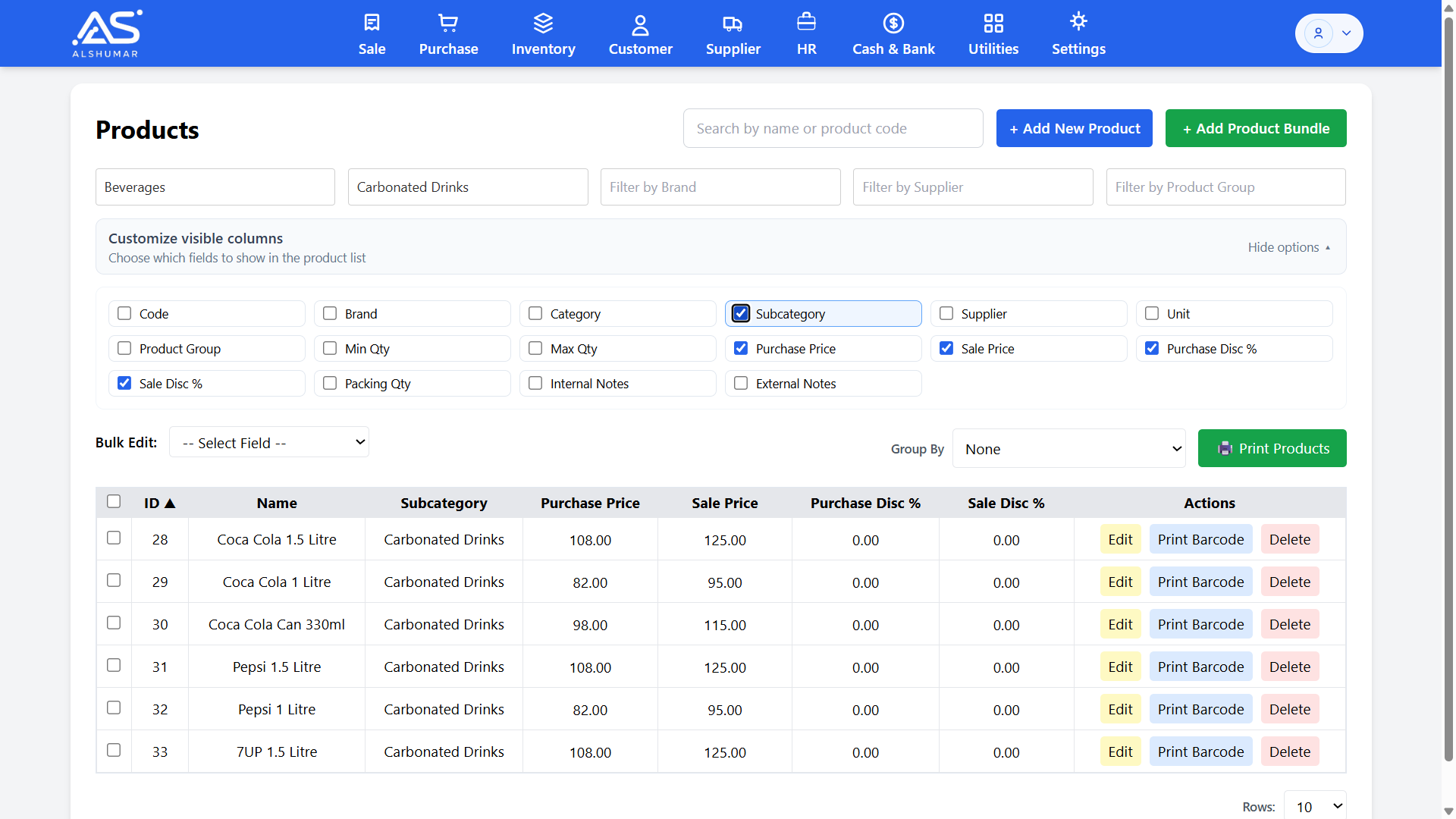
The product list can show a lot of information. For a price update session you probably do not need to see packing quantity or internal notes cluttering up your screen.
Al Shumar POS lets you choose which columns to display. You can toggle on or off:
Product Code
Brand
Category / Subcategory
Supplier
Unit
Product Group
Quantity / Min / Max Quantity
Purchase Price ✓ (on by default)
Sale Price ✓ (on by default)
Purchase Discount ✓ (on by default)
Sale Discount ✓ (on by default)
List Price
Packing Quantity
Internal Notes
External Notes
For a focused price update session, keep only Purchase Price, Sale Price, Purchase Discount, and Sale Discount visible. The table stays clean and you can work faster without scrolling sideways.
The system limits visible columns to six at a time to keep the view readable on all screen sizes.
8. Bundle Product Protection — No Accidental Overwrites
If you use bundle products in Al Shumar POS — products made up of multiple components — their prices are calculated automatically based on the components. You should not be manually overwriting those prices.
The system protects you from this automatically. Bundle product price fields are locked in the inline edit view and skipped during bulk increase operations. If you run a bulk percentage increase on 100 products and 15 of them happen to be bundles, those 15 are skipped and the remaining 85 are updated. The response tells you exactly how many were updated and how many were skipped.
No accidental overwrites. No corrupted bundle pricing. It just handles it quietly in the background.
9. Which Method Should You Use?
Here is a simple guide based on your situation:
Situation | Best Method |
|---|---|
One product, one price field changed | Inline editing |
One product, multiple price fields changed | Individual price form |
Multiple products, same new fixed price | Bulk update — set value |
Supplier raised rates — same % for all their products | Filter by supplier → Bulk increase by % |
Adding fixed freight cost to a group of products | Bulk increase by fixed amount |
Category-wide price revision | Filter by category → Bulk increase by % |
Why This Matters for Pakistani Businesses Right Now
Price management in Pakistan is not a once-a-month task anymore. For many retailers and distributors it is weekly. Sometimes daily. Sitting down to update prices one by one in a basic system is not just slow — it is a source of mistakes. A product left at the old price. A sale made at a loss without realising it.
The features described in this guide exist because we built Al Shumar POS around the actual conditions Pakistani businesses operate in. Not an ideal market where prices are stable — the real one, where they are not.
If you are still managing prices manually in a spreadsheet or a basic system, the time it takes to update one supplier's product list is probably costing you more than a software subscription.
Ready to Try It?
Al Shumar Sales and Inventory Management System offers flexible plans based on your business size and requirements — from essential sales and inventory management to full accounts and multi-device support. Setup is straightforward and our team handles the onboarding.
👉 View Plans and Pricing on alshumar.com
If you have questions or want to see the system before subscribing, reach out directly on WhatsApp: +92 314 2422343
Written by
Muhammad Abdullah